Do you have an online presentation coming up? I’ve given hundreds of virtual presentations, ranging from YouTube presentations to presentations for Microsoft. And from my experience, online presentations are a different ballgame than in-person ones.
In this article, I’ll share my top 12 tips and tricks to save you the trouble and ace your next presentation.
What is an online presentation?
An online presentation is a prepared speech or talk in which a person or group provides information, pitches a new idea, or introduces a new product or service through a video call. Online presentations are given to an audience, usually in a business setting.
Ready to take a dive into the tips? Let’s go!
Start With Momentum

Virtual presentations are like taking a flight on an airplane. The beginning and ending are super important, but the middle’s kind of a blur.
That’s why, if you’re going to prioritize any part of your presentation, you are better off spending the majority of your energy on the first and last minutes. Let’s focus on the first moments.
The beginning of your presentation is critical because it sets the tone—a good first impression makes you feel confident and your audience relaxed. This forward momentum will carry onto the middle part of your presentation where you’ll be presenting the bulk of your data/statistics/information—so if you don’t nail your first impression, you won’t gain that forward momentum you need for the rest of your presentation.
And believe me, people judge you almost instantly! Here’s what the science has to say about first impressions:
A 2017 University of Toronto study found that observers take as little as 5 seconds to determine whether a person is charismatic or not!
So when you’re delivering a presentation online, you should try to make your beginning as error-free and smooth as possible. This includes being prepared and removing potential roadblocks:
- Fix computer errors: ALWAYS double- or triple-check your equipment before giving a virtual presentation. Make sure your microphone, webcam, and internet is working. If you have to fumble around with technical details during the video call, your audience may have the impression that you are unreliable.
- Eliminate distractions: Silence your phone, turn off desktop notifications, get rid of loud fan noises, and make sure your room is kid/dog free. Keep in mind that your audience will likely be listening through their headphones, so even the tiniest of noises might be heard.
- Dress appropriately: Here’s an easy one that some people actually neglect. Have you ever been in a situation where you feel like you should have worn something a little nicer? If you are giving a business presentation, dress in business appropriate attire (yes, even the pants, too!). It’s best to match your audience—and if in doubt, err on the side of professional! It’s also important to wear a color to stand out from your background, but not a color that’s too distracting.
- Be happy: Like it or not, we can’t hide our emotions. Research shows that people can hear your mood from your voice. So if you’re not in a good mood, try boosting it! Watch some funny YouTube videos or give yourself a small pep talk. Sounding confident and happy is the key to success, so make sure you are in the right mood before you go live.
Open With IISSAAQQ
What does this really bad spelling of Isaac stand for? IISSAAQQ stands for the best ways to start an online presentation:
- Icebreaker: One of the best ways to open up your audience is to give a virtual icebreaker. I always keep an icebreaker on hand that can be done over the computer before starting any online presentation—it’s one of the best ways to connect with your audience!
- Illustration: You can say to the audience “Remember when…” and provide a picture, or paint a scene by telling the audience to imagine a scene when xyzzy occurred.
- Short story: A short personal story or story about someone else can really grip people, but the key is to make it short and not drag on.
- Statistic or surprising fact: A really good statistic can get people thinking and challenge their perspective.
- Aphorism: An aphorism is a common phrase or saying, such as “an apple a day keeps the doctor away.” Add a twist to the aphorism for added effect (“an apple a day keeps the doctor away… except if you’re sitting with an apple computer for 8 hours a day.”
- Analogy or metaphor: Saying an analogy (“User interface is like peeling an onion”) can really break down complex terms into more simpler ones, making it more digestible for your audience.
- Question: Starting with an engaging question can add a great amount of audience engagement, or even asking a rhetorical question can get them thinking out-of-the-box.
- Quote: A great way to start your online presentation is with a quote–but it should be related to your presentation and from a credible source.

End With a Bang
The ending is the part where your audience is (hopefully) happy that the presentation is over, and they feel like they’ve learned something or feel inspired to change. If you’ve made it this far in your presentation, the LAST thing you want to do is crash and burn. So here are some tips to make an amazing presentation that will remain in your audience’s mind long after it has ended.
- Have an easy solution: The last few slides of your presentation should not be too information-heavy. Keep that for the middle. Your last slides should be both convincing and easy-to-understand.
- Have a clear ending: Avoid the awkward “So, does anyone have any questions?” moment by providing an end slide to your virtual presentation. It can be a simple recap of the presentation, or a call to action.
- Include a digital goodie: Include a digital goodie at the end! Everybody loves getting things, and it shouldn’t stop just because you are online. Digital goodies might include a downloadable PDF or document that includes more statistics/research or a list of relevant sources related to your presentation.
- Lead with a call to action: Calls to action are driven by emotion. And they work because we often respond to emotion over logic. If your business is proposing a new solution to an existing problem, try focusing on the emotional benefits vs. the statistics—happier customers vs. less product returns, cleaner world vs. smaller carbon footprint, etc. You can also try this double method: start with the negative, which amplifies the potential bad that might happen if your recommendation is not taken. Then, you can add in the positive, which highlights the good that can happen when your recommendation is taken.
- End with humor: One of the best ways to end a presentation is to use humor. If you do it right, you can leave a HUGE impression on your audience that will last for days, weeks, or months! There are a few ways to end with humor. First, you can introduce a question in the beginning or middle of your presentation and answer it in a funny, surprising way at the end. Second, you can end a story you started but stopped in the beginning or middle of the presentation. Some really good people to draw inspiration from are stand-up comedians. One great example of callback humor is in the movie, Airplane! In the beginning of a movie, a passenger enters a taxi. The driver tells the passenger to wait for a bit, but the driver never comes back as he ends up on an airplane instead. In the closing credits, this scene is played, which recalls the intro of the movie in a funny but memorable way:
Show Your Face
Did you know that faces are attractive to humans? A study by Richard Fantz demonstrated that infants stare twice as long at human faces! We are just inherently born with an attraction to faces. In short: we love human faces, and yours is no exception.
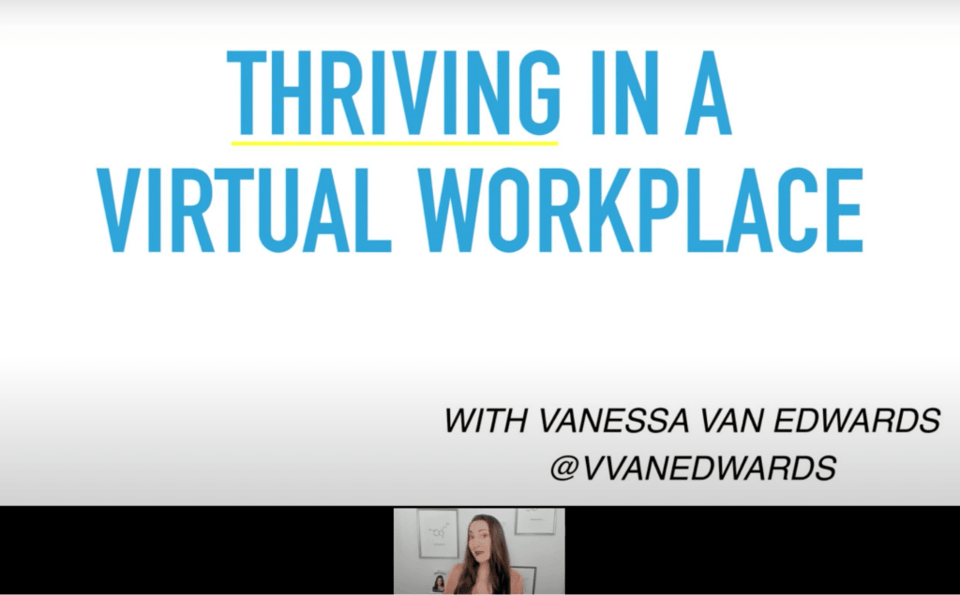
If you’re giving an online presentation or even getting on video call for the first time with your new online networking contact, a super-easy bump in your likability factor is to simply show your face. Many video call programs such as Zoom or Skype allow you to share your screen while also showing your face. Here’s an example of my face in a webinar I hosted on how to thrive in a digital workplace:
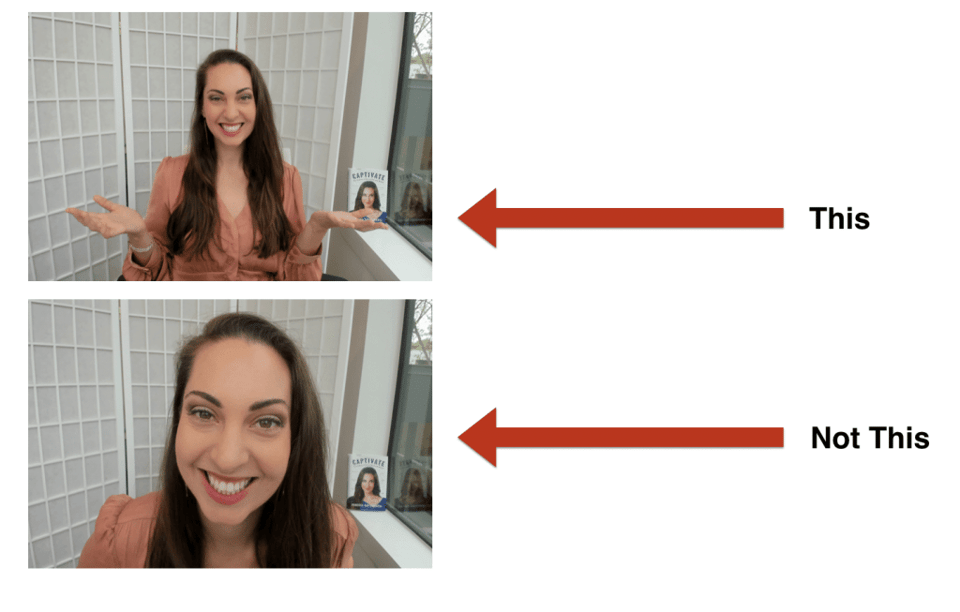
Pro tip you can even take it up a notch by backing up your webcam. This allows you to show your body language better! In fact, one of the most important nonverbal cues for charisma is your hand gestures. In the Toronto study mentioned earlier, the observers didn’t even need to hear a presenter talking; all they needed to do was see their body language! That’s how powerful body language really is. So push back your computer or phone or camera so your hands and upper torso are showing!
When you use your hands, you can also benefit from the following:
- Showing your wave hello (I ALWAYS do this!)
- Your explanatory gestures while you are speaking
- Visible hands while you are listening
Want more tips on how to make a better video call? Here are our 15 Tips for a Better Video Call!
Stand, Don’t Sit
Sitting is great. Standing is even better! One big mistake a lot of virtual presenters make is sitting down instead of standing.
When you stand, you can utilize the full range of your deep breathing, therefore increasing your vocal power. You’ll be able to project your voice louder and deeper, and have stronger vocal variance when you stand. Standing also helps you naturally convey a more powerful posture if your chest is up and your back is straight.
If you can, try to utilize a standing desk to your advantage! If you don’t have a standing desk, you can use your kitchen counter or another higher position to place your laptop. If you absolutely must sit, remember to keep your back straight throughout the presentation.
Gift Early
Does your online presentation contain a juicy tip, great piece of advice, or free goodie?
Consider giving it out in the first 5 minutes of your presentation rather than keeping it until the end. This will give your audience a little dopamine boost of motivation to continue listening to your presentation!
“Simply put, people are obliged to give back to others the form of a behavior, gift, or service that they have received first.”
Leverage Visuals to Your Advantage
Have you ever wondered what is the best way to use visuals in your online presentation? Visual aids are used to:
- engage the audience
- allow the audience to remember the information
- axplain complex ideas in easier-to-digest ways
- add variety to your slides
I try to use visuals in ALL of my online presentations! The thing is, it’s really hard to keep your audience engaged and distraction free, especially if they are online. So if you’re boring your audience by using long lists of words… your message won’t be getting across. According to John Medina, author of Brain Rules:
- If we only read text, we are only likely to remember 10% of the information 3 days later.
- If we add in a relevant image, we are likely to remember 65% of the information 3 days later!
So there’s no easier way to have your information remembered than to add visuals! Here are some examples of visuals you can use in your presentations:
- stock photos
- Youtube videos
- bar charts
- pie graphs
- GIFs
- memes
- hand-drawn pictures
In my articles, I like to use hand-drawn stick figure comics. That’s because they’re both funny and engaging! They also help nail down important bits of information I want my readers to take away.
For example, here’s a random fact that you may not have known:
Alligators don’t only eat meat; they eat fruit, too!
Interesting, right? Now here’s an image to really drive in that fact:

I know, it’s not the best picture ever (I blame my lack of art skills!). But see how adding a simple image can really solidify a piece of information? You’ll remember this fact a lot longer by seeing an image rather than just by reading or hearing it.
Now take the power of visuals and use it to your advantage—if you’re giving a business presentation online, sprinkling in a few key visuals throughout your presentation can help you drive in those really important points.
If you’re debating whether you should use a visual, here’s a quick checklist to ask yourself:
- Does my visual help the main point of the slide?
- Is my visual appropriate for the audience?
- Is my visual too distracting?
- Does my visual help the audience understand complex information better?
- If a video, is it too long or short?
If your visual doesn’t meet one of the above checklist items, it’s best to cut it. And here’s something important you can write down for each visual you add into your slide:
The purpose for this visual is to ___.
If the purpose is not clear enough, consider removing the visual. Remember: visuals should only ADD value to your slide, not take it away.
Add Interaction
A major downside to online presentations is that it’s hard to engage your audience. Besides nicely-placed visuals, you can add an element of interaction to your virtual presentations to make your audience more interested. Here are some interactive presentation ideas:
Use Props
A great way to increase audience engagement is to use physical props.
How do you use props in an online presentation? Props should be used to explain a difficult concept, demonstrate a product, create humor, or be memorable. They should always support your presentation, and not distract from it. And the key to using online props is to first make sure that people can actually SEE your prop.
This means if you are in a video call, avoid using small objects that everyone can’t see. If you need to, you can momentarily stop screen sharing and turn to your live video feed so the audience can focus on your prop.
Pro tip Don’t show the prop until it is needed. A bad move is to give away the goods and immediately take them away, causing your audience to remain in suspense and be distracted throughout your presentation!
Host Quizzes and Polls
One cool thing you could do during your presentation is to include your audience’s opinions using surveys. If I’m giving a presentation, I can insert a little quiz with a list of possible answers which my audience can then vote on. It’s really interesting to see how many people pick the right (or wrong) answer!
If you want to know how to create awesome quizzes for your presentation, check out our software section below.
Live Q&A’s
One technique I love to use for better interaction is to simply ask questions!
For example, if you have an existing product you are discussing, you might want to ask your team, “What are some common customer complaints about this item?” Your team will then give their answers, pitching ideas of some common customer complaints.
Here’s where it gets good…
You can then go to the next slide that addresses these problems individually. Bam! You’ve done two things:
- You added interaction, and
- You provided a nice transition to the next slide.
Niiiice, a two-for-one combo!
Cut the Presentation Bologna
What happens when you talk about the same things over and over again in a presentation? One bored audience, that’s for sure. And a whole lotta bologna on the side.
Repeating the same stuff. Facts that don’t need to be there. Extra words that make your eyes tired or are difficult to read.
I call this stuff Presentation Bologna. And it’s NOT the good kind of bologna (is there even a good kind?). Presentation Bologna includes:
- bullet points not relevant to the slide’s topic
- statistics or facts that reinforce already-existing data
- visuals that take up space rather than contribute value
- “fluff” words, or extra words that can be cut from a sentence without changing the original sentence’s meaning
Your goal is to make your presentation slides as small as possible, while retaining the most essential information possible. You can even write down notes on notecards to help assist you in explaining the points you have in your presentation or memorize what you will say altogether.
Online presentations should be simple and straightforward, like live presentations. The biggest difference here is that your audience will likely be straining their eyes, trying to look at their (potentially tiny) computer screens while you are giving a presentation.
That’s why it’s essential to cut the bologna. I usually do this step after creating the bulk of my presentation, but before practicing my presentation. Speaking of practicing, let’s move on to the next step…
#Screen Record Yourself
The great thing about giving online presentations is that you can practice everything in the comfort of your own home. You can practice in the same room you’ll present in, with the same lighting, with the same computer setup, and everything. When practicing, make use of the screen recording feature! Screen record is an absolute must, especially for virtual teams. Most newer Mac and Windows computers have a built-in screen record feature already.
When going over your video recordings, take careful consideration of the following:
- Do I use too many/not enough hand gestures?
- Is my body language unnatural or distracting?
- Do I sound loud and confident enough?
- Do I have any technical issues?
- Am I under the time limit or going over?
You can even send your presentation over to a friend or family member for them to review at their convenience. Yay for technology!
Pick Your Presentation Tools
When giving an online presentation, you have to have the right tools for the job. There are a lot of presentation tools out there—tools exist for:
- making your own animations
- creating Infographics
- planning conferences
- creating mind maps
- finding great images for your slides
- making your entire presentation
Depending on your needs, you’ll need to choose the right tools for your virtual presentation. I recommend choosing one tool to create your presentation and adding in visual tools along the way, based on your needs. Here are 5 of my favorite online presentation tools I use:
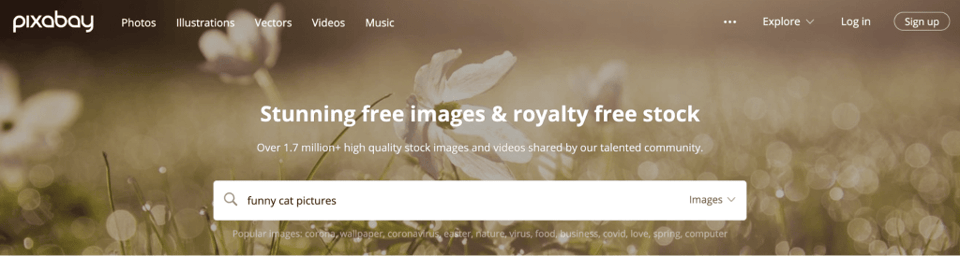
Pixabay is by far my most favorite image-finding tool. This site has over 1.7 million free, high-quality stock images and videos you can use to insert into your virtual presentation. Using a stock image is a great way to break up text, add a little emotion, and make your presentations a little more exciting.
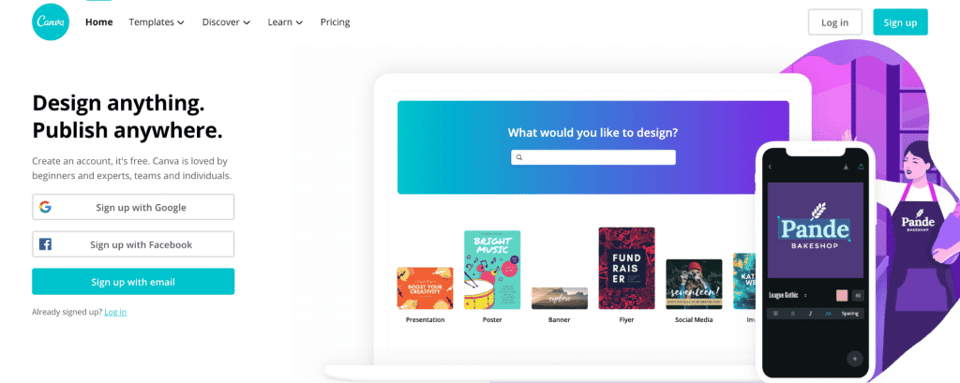
When I use Canva, I feel like I’ve been given a magic design wand. That’s because there are a ton of free infographics, logos, pictures, posters, and even presentation templates you can use and customize to your heart’s content. And they’re surprisingly high quality for being free! Canva even has a section for Zoom Virtual Backgrounds that you can add to your video call when giving your online presentation!
Did I mention it’s free? I use the Premium version, although the Free version is great, too!
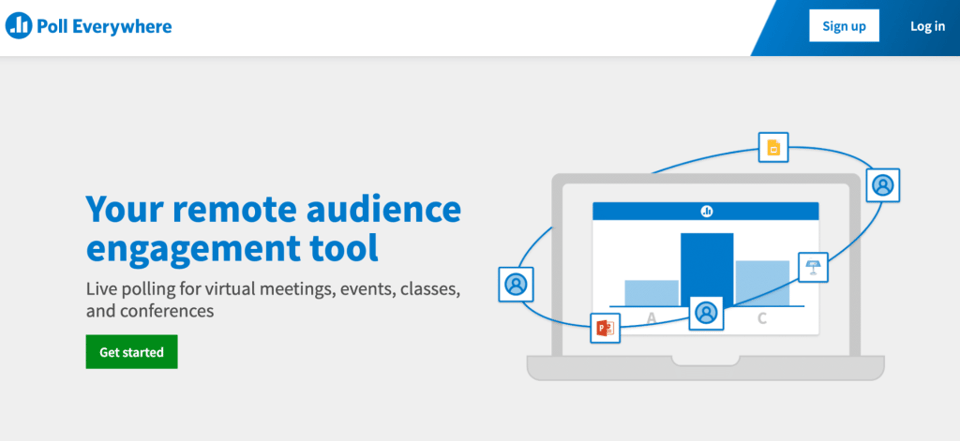
Here’s one that I mentioned earlier in the article. This is a great software I use to create live polls and quizzes for my virtual presentations! Whether it’s a multiple choice quiz, true/false test, or just a general Q&A poll, users can participate on their computers, phones, or tablets! It’s super easy to use and integrates easily with Keynote as well.
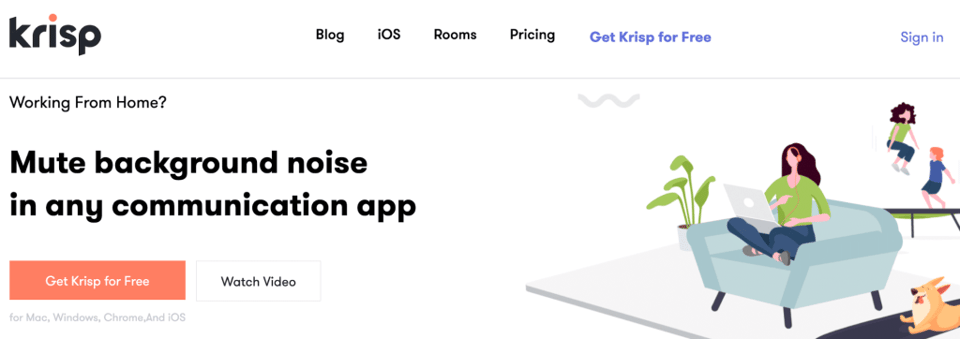
Want to eliminate distracting noises completely? Sometimes that’s not possible. But the closest thing I have found to help is Krisp. Krisp is a software that’s free to use (up to 120 minutes a week!) and works by blocking out all background noises so only your voice can be heard by other conference call members. You can download and install it, but I use the Chrome extension! It’s seriously worth giving a shot if you’ve got loud noise in the house.
Here’s the golden question: Should I make a Keynote online presentation, or a Microsoft PowerPoint one? Since I have a Mac, I use Keynote. It’s intuitive, easy-to-use, and it’s built into all Mac computers already. Keynote has a ton of presentation templates you can use, and you can even create tables and charts in the app itself! For me, Keynote is a must for my presentation-creating needs.
I compiled a list of the best tools my team uses. You can check them out here:
Embrace The Fear
Have you ever been skydiving? Even if you haven’t, you can just imagine that pit-in-the-stomach feeling of jumping out of an airplane. And if you shy or a natural introvert, giving presentations is not so different than skydiving.
After giving hundreds of presentations—both in-person and online—my best piece of advice to those with presentation anxiety is to give up on trying to get rid of that fear. That’s because that fear will probably never go away.
But here’s the silver lining: the fear does get better. The more you give presentations and get comfortable speaking in front of people, the less giving presentations suck. If you hate giving presentations like I once did, you might even turn to love them—once you learn how to walk with confidence and have the power to influence the way people think, you feel like you’re on top of the world!
And that pit-in-the-stomach feeling? It changes to a good fear—the kind that makes you look forward to giving presentations! And the more presentations you give, the better you get.
Life is better when you build your social skills. As a recovering awkward person, I was terrible at socializing—I would often lock myself in the bathroom at parties just to avoid conversation! But now, I want to inspire people to take charge of social situations because I know that social skills are the key to a happier, more productive life. That’s why I gave all my secrets about how to be ridiculously likable in Chapter 5 of my book. Interested? Here’s a free gift for you today– click here for the free first chapter of Captivate!
Bonus: Other Creative Presentation Tips
Congratulations, you have arrived at your destination!
As a thank you for taking this Science of People flight with me, I’d like to share with you some bonuses to take your presentation skills to the next level.
Here are some techniques you may want to master:
All too often we end up using the same old social scripts and asking people the same questions over and over again. If you want to do a team icebreaker before, during, or after your presentation, use my list of conversation starters:
57 Killer Conversation Starters
People who don’t feel confident often believe that confidence is something we are born with. It’s not. Confidence is a skill that can be developed. If you are nervous about your presentation, try boosting your confidence with these scientific techniques:
11 Scientific Strategies For More Confidence
Not everyone can work from home. But if you find a way to do it properly, you can reap some pretty amazing benefits. Check out the 7 Deadly Problems of working at home and how to combat them:
How to Work from Home Successfully in 7 Steps
Finally, I put together a guide on how to manage remote teams. If you’re leading a team of remote workers, this is one guide you shouldn’t miss! Check it out here: